This Blog Uses Commento - Here is Why - Updated 2024-03-10

You can leave a comment on each blog post, thanks to Commento, you’re not being tracked.

When I created the Numeric Citizen I/O blog, I thought it would need a way for visitors to be able to leave comments as they see fit. I decided to go the Commento route because of its tight integration with Blot, but also for a more profound reason: privacy protection. According to Commento’s website:

Commento is more than just a comments widget you can embed — it’s a return to the roots of the internet. An internet without the tracking and invasions of privacy. An internet that is simple and lightweight. An internet that is focused on interesting discussions, not ads. A better internet.

There are no ads with Commento, so there is no need to track users. The weight of the script needed to add Commento support is light. Commento is easy to use for end-users and doesn’t require an account to publish a comment. But, if you prefer, you can use your Twitter account, your Google account, your Github account, etc, to identify yourself with the service before posting your comments. The design is nice and simple. Commento is not a free service, but I’m paying $99/year for it. That’s the price that I’m willing to pay so my readers aren’t tracked.

Enabling Commento on this blog was dead simple

Do you want to try the end-user experience? Please respond to this blog post; you’ll see. Thanks in advance.

Update: 2022-11-15: Since this blog is no longer hosted on Blot.im, comments are handled “automagically” by Craft as a Craft-based document. Update: 2024-04-10: This content is now hosted on Micro.blog. You can reply to this post by using the provided buttons, below.

Testing wall.blot.im

Testing a web-based blog post publishing tool for posting directly to Blot from a webpage.

I’m currently testing a straightforward blog post publishing tool running on a webpage. The tool is accessible at https://wall.blot.im. I wrote a front matter; I guess Blot will process it as usual. The editor provides a character count, a word count, and a way to export the current blog post or publish it directly on my Blot website. Once published, I guess that I’ll have to do a “pull” from my Git client to sync the newly published content with my local repo clone. Let’s try this. Nope. It won’t work unless I use Dropbox, not Git. Too bad. Returning to normal programming in 3, 2, 1.

Learning a Bit of Blot’s Internals

I made a few layout changes to my archives page.

Someone on Micro.blog posted something from its Blot website and I noticed he was using an unknown meta tag in the post’s front matter: metadata.icon. He used a tag to add an icon to each of its blog post. I wanted to know how Blot actually used this tag to format the blog post, so I asked the guy. His answer made me look deeper into Blot processing of meta tags. After some readings, I decided to change the content of the archives page to use the “summary” tag after each blog post title. It is super easy to edit Blot templates. In that case, it was a matter of adding a {{summary}} tag like this:

Adding the summary tag to the archives.html template.

Documenting Blog Changes

Using Git instead of Dropbox for Blot content syncing provides an unexpected benefit.

As I recently wrote, Blot supports two mechanisms for synchronizing content from my Mac to the web: Dropbox or Git. I chose Git. As I write this, I’m still testing Nova as the Git front-end (I’m a GUI type of guy). One of the great benefits of using Git is the built-in history of commits that is at the core of any Git repo. As shown below, as I push updates to my Blot-based website, I make sure to write a short comment in the commit action to document the commit action. I think this is an important asset in managing a blog and owning its content.

Commit history to the blog report using Nova

A better view at the GIT panel in Nova:

Nova GIT panel with commit message area

Archiving my Content from Micro.blog to GitHub

Micro.blog allows for archiving all content to GitHub. Here is why I did it.

This blog post is about explaining a Micro.blog allowing me to archive all my blog posts, including images and why I do it.

First, you must know that Micro.blog already provides an archiving feature of all blog posts to the Internet web archive. You can find mine here. I think it is important because in our society, the durability of the numerical artifacts we create is far from guaranteed. Saving my blog posts outside of Micro.blog is one way to prevent my content from vanishing if something really bad happens to Micro.blog.

Micro.blog feature to archive my blog posts to a GitHub repo

I wanted to go further, though. This is where Github comes in. First, I needed to create a new repo: numericcitizien-archives. Next, by using the built-in feature of Micro.blog to archive blog posts to the newly created GitHub repo. Enabling it is super simple from the design page settings. Once done and after waiting for about a week, I could see my content from my GitHub account. You can find it here: https://github.com/jfmartin67/numericcitizen-archives.

Now that my Github repo has a copy of my blog content hosted on Micro.blog, I can use a Git client like Nova on the Mac to clone this repo to my local machine. The archive feature of Micro.blog creates a big index file in HTML format that I can then open in Safari. It’s really nice.

The Initial Blot Setup

Setting up this blog with Blot was pretty straightforward.

It all started as an experiment. But now, it’s not. It’s something permanent1. In less than a day, everything was set up and running. From the setup of the domain name (with GoDaddy) to having an actual site available for browsing. This is the very short story behind setting up the Numeric Citizen I/O website with Blot.

Blot’s dashboard page for this blog.

My interest in Blot came from the desire to have better control over the visual appearance of my microblog, which is hosted on Micro.blog. Micro.blog supports some customization but it’s too demanding as you have to have some knowledge of HTML, CSS and Hugo templates inner working. Another goal was to own my content.

Blot is a nice solution to my objectives: owning the content, easy visual styling, and easy publishing. Blot allows me to keep using my current applications like Craft for initial post writing Ulysses on the Mac, which supports Markdown files for editing. I had to select a GIT client to complete my workflow for publishing blog posts.

Opening my account on Blot was super easy. Before going further with any of the Blot settings, configuring my GIT client was mandatory. Cloning the Blot repo on my machine was quick and easy, too. Any non-fixable issues at this stage would have jeopardized the whole initiative.

The Blot settings page for this blog.

Next up: setting up analytics, page structure, support for commenting blog posts, and closing a link format. All of this was dead simple to set up. But I wasn’t done yet. The next step was to select a visual theme. I wasn’t satisfied with the available themes, so I asked for support for help as I knew there were other themes available. After describing what I was looking for, the guy behind Blot agreed to bring back one of the decommissioned themes (for an unknown reason). In fact, it was the previously available default one. This closed the loop. I’m a happy camper now. I like this theme because it gives this blog a “scientific paper” look, and I love it; it aligns with the blog’s purposes.


  1. As I’m porting this content to my Micro.blog hosted metablog, I recognize that nothing is permanent. ↩︎

Selecting a GIT Client

Selecting a GIT client for the Mac is a bit harder than I thought. When I decided to create this blog using Blot.im, I had to select the synchronization mechanism between my Mac and the Blot.im service. Blot.im offers two choices: Dropbox (easy, seamless, but too invasive and bloated software) or GIT. I decided to use GIT, for a few reasons.

First, GIT is geeky. I like geeky stuff. This blog is about being geeky, so why not! More seriously, using GIT means that I have to select a GIT client on my Mac (and eventually on the iPad, too, for on-the-go publishing). The leanest way to manage content sync could have been to settle for the command line only. It is super easy to install GIT in the command line on the Mac. But, now, that’s too geeky to my taste. I prefer going GUI, being able to preview commits, file content, etc.

Here is a list of GIT clients for the Mac that I more or less tested with my impressions for each.

  • GITHUB Desktop Client. I think this one is mandatory as it is the official Github client. Works fine as a GitHub client. Super easy to use but limited in editing functionalities, but I can configure it to open files in Nova1. But it cannot connect to Blot.im GIT remote repo. Yet, it’s a keeper because of Github. It’s free.
  • Microsoft Visual Studio Code. This one is impressive but also overwhelming. Do I need this complexity? Probably not. I don’t like its look and feel either: too Microsoft, not enough Apple-like. It’s still not optimized for my M1-based Mac mini, which is not good! It’s free. I will probably delete it from my machine.
  • Tower. This one was mentioned by someone I follow on Micro.blog. It’s not free. I like the look and feel of this app. It’s clean. Works great on macOS Big Sur. But somehow, I find it less intuitive compared to Nova. It’s a fully native application (not Electron-based). Will be deleted.
  • Sourcetree. Another GIT client but for Gitlab only (could not find a way to connect to Blot.im GIT repo). Still Intel only, not optimized for M1-based machines. No go. Deleted. Thanks to App Cleaner.
  • Atom. It’s still Intel-only, sadly. It looks good, but I cannot connect to Blot.im GIT repo. It only supports Github.
  • Nova. This app is well-known in the Mac community. They recently released version 5.0. It looks great: a tad busier and crowded interface and costs more than Tower. It comes with a local web server, so I can preview my Markdown file edits effortlessly. It also supports many file types (HTML, CSS, to name a few). It does support extensions to augment its features which is cool. I installed a few of them (Prettier, for example). Finally, Nova supports connecting to many types of servers (FTP, SFTP, WebDAV, etc.). I feel Nova will serve me better in my blogger workflow in the long run or could be used if I ever want to test a local installation of Hugo. Who knows.

As I write this blog post, I choose to settle on Nova for now. I’m still on the trial period. I have 18 days left. I can still change my mind. Meanwhile, if you have any suggestions, feel free to post a comment at the end of this blog post (not from the main page but by hitting the date & time of the post, which will bring you to the post page where you can comment).

In a future post, I’ll explore GIT clients for the iPad. WorkingCopy seems pretty popular.


  1. Nova does both, GIT and file editing. ↩︎

Where Micro.blog Fails for Me

I’ve been a user of Micro.blog since 2018. At first, I wasn’t sure I would like the place. Eventually, it grew on me because it is such a quiet place1, with more engagement from the community members and with much more respect. There is something that I don’t like about Micro.blog, though. It’s the lack of easy control over the visual appearance of my blog.

Micro.blog is based on Hugo, a static site generator. It’s pretty flexible, fast and open-source. My current understanding of Micro.blog is that it doesn’t expose all of Hugo’s controls, only a subset of them. I’m ok with this, as Hugo is not for the faint of heart. Yet, I’m not ok with the look of my microblog. I want to make it more personal, less like a generic website based on a frequently used visual theme. To make changes, I need to know about HTML (I’m kind of okay with this) and CSS (I’m not okay with this!). CSS is the weirdest thing I have ever encountered in my digital life. What a messy “language”2. No amount of reading or YouTube videos will make it understandable for me.

Another solution would be to import an already-made Hugo theme in Hugo. The other issue with Micro.blog is that it isn’t easy to import open-source Hugo-based themes. They need to be “ported”. Again, it’s not something I want to mess with. I recently started to think that maybe it was time to have my own microblog hosted somewhere to get complete control of the visual appearance. Installing Hugo on my M1-based Mac mini is simple. Having a publishing pipeline from my machine to the web looks pretty easy, too. It’s only the beginning. Even with great articles like this one, I find it difficult to wrap my head around it.

After much reading, I changed my mind and settled on the “Hyde” theme of Micro.blog. I would lose too much if I were to be alone, and new challenges would certainly arise. I hope for Micro.blog to keep evolving, especially in the area of better customization. I asked its founder to open up its roadmap. I’m anxiously waiting to see what’s next.


  1. Compared to Twitter. ↩︎

  2. Not a language but a formalism for visual rendering of content. ↩︎

The First Post of a Long Series

Writing about my numeric experience isn’t new for me. When I was an indie iOS developer (2009-2013)1, almost at the same time I started learning Objective-C, I opened a Blogger site called “buildingiphoneapps.com2. The idea behind this was to share my experience of learning a new language and a new programming platform. I wanted to share my discoveries, my challenges, etc. It was fun while it lasted. This website started my experience of being a blogger. So, today, welcome to Numeric Citizen I/O - a metablog from Numeric Citizen.

Meta definition according to Wikipedia:

Any subject can be said to have a metatheory, a theoretical consideration of its properties, such as its foundations, methods, form and utility, on a higher level of abstraction. In linguistics, grammar is considered as being expressed in a metalanguage, language operating on a higher level to describe properties of the plain language (and not itself).

Meta?

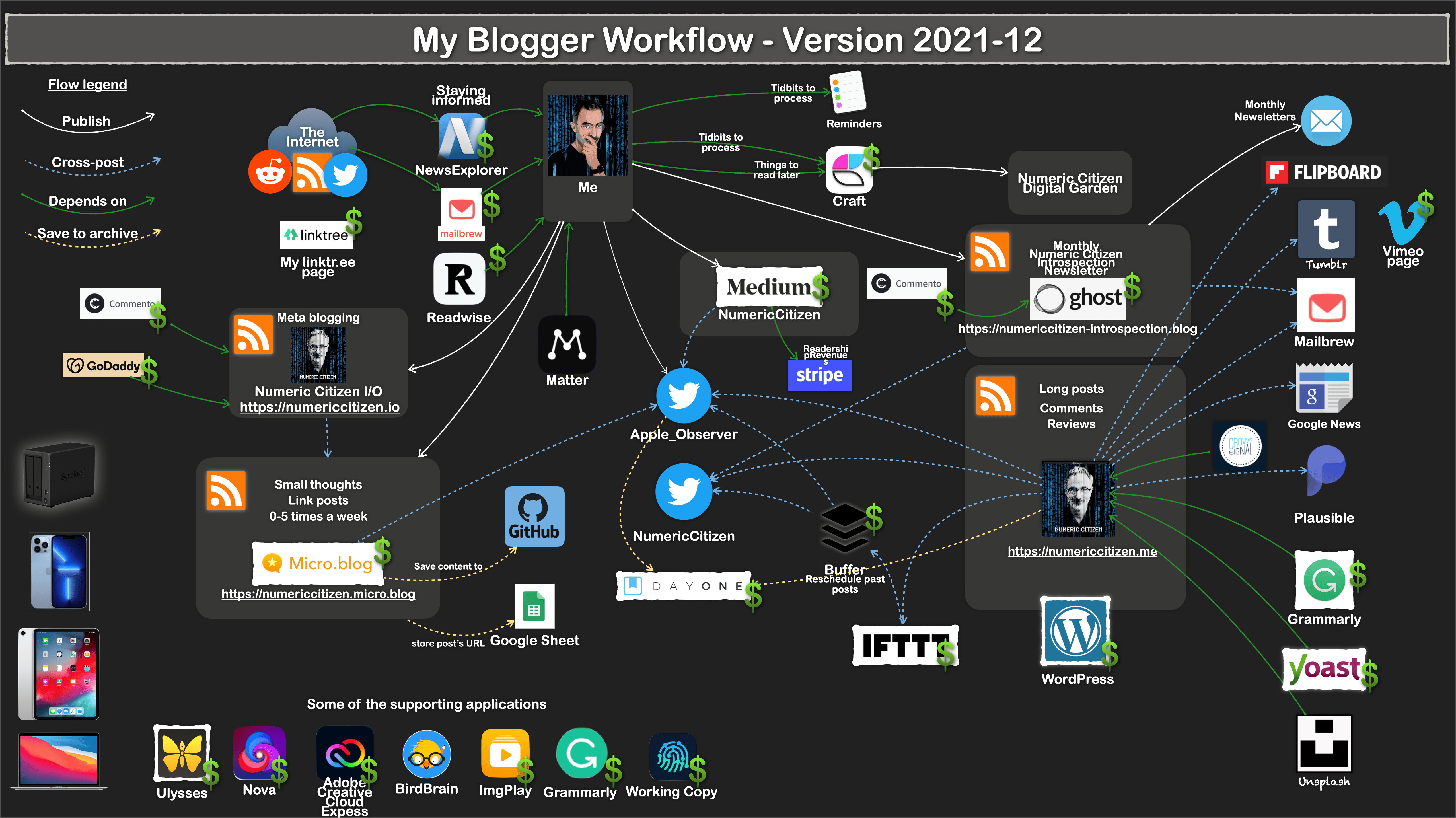
This blog is all about meta-blogging3. What? You might think? In other words, this blog is about the tools, services and workflow I depend on daily to build and maintain my online presence. I think that many people find it interesting to know how things are done behind the scenes. This is the purpose of this blog. From time to time, I’ll post updates when a new tool, application, or service comes into play. I’ll also document workflow changes or retired services. From now on, updates will be published here. While waiting for the next post and to get a sense of my current blogger workflow, consider the following diagram. It doesn’t reflect the presence of this blog yet. Wait for an update very soon.

Why?

But why use a separate website to write about blogging? I’m glad you asked. Here is why. Each of my websites has a specific audience and content type. Think of my websites as different specialized TV channels. Each of them fills a specific role or targets a specific audience. I think it is better for a blog to stay focused on its core subjects. Each website can have its own personality and visual theme to support it. That’s why.

Make sure to visit the About page for more details about this blog. You can leave a comment, too; I would be more than happy to engage in the conversation! To do so, just hit the post’s publishing date to see an individual post and add your comment at the bottom. Thanks.


  1. I developed a password manager for the iPhone. ↩︎

  2. I think part of this website is still available on the internet archive. ↩︎

  3. WARNING This site is nearly ready to serve its purpose. Things will probably change a bit in the next few weeks, though. ↩︎

My Updated Blogger Workflow as of 2021-01

As a content creator, I’m always looking for new ways, tools and services to improve my workflow to be as efficient as possible. If something no longer fits my needs, I’m not afraid to make changes. The last update to my blogger workflow dates back to last November. Since then, I made quite a few important changes.

My Blogger Workflow as of 2021-01.

What’s in?

First, I added my Synology DS720+ as a central tool to manage my digital assets, mostly pictures used in my publications. I acquired this NAS last year to consolidate my numerical assets, and I cannot overstate how good this product is. The first use was to back up important files and archives later I added the digital assets use by taking advantage of Synology Moments, a photo library service that comes with the product. Read more about my use of Synology NAS here.

Next, an important addition is Craft. I’m still in the early stages of working with Craft, and I plan to write about my observations in the near future. Meanwhile, let’s say Craft is a similar yet quite different beast than Notion. It has a cleaner and really polished design and helps me gather digitals tidbits, write and organize my thoughts. You can have a look at a few micro-interaction examples with Craft on my Vimeo page. I don’t plan to kick out Notion from my workflow yet. Notion is much more powerful than Craft. I think there is a place for both of them in my toolset.

Speaking of Vimeo, I’m back for another year as a paying subscriber. I much prefer Vimeo to YouTube (you know my stance on data privacy protection and Google, right?). I used Vimeo to publish a video about why I’ll never be a YouTuber. I’m also creating a collection of short clips of great micro-interactions with apps. Craft is one of the collections. My Vimeo profile page is here.

To create short animation clips in my publications, I use GIF files. Those are created from video clips and then converted to animated GIFs using the powerful ImgPlay application available on iOS, iPadOs and macOS Big Sur (thanks to the M1-powered Macs!). For me, it’s the best animated GIF creation application out there. Think of ImgPlay as a Final Cut Pro but for animated GIF creation.

Finally, the diagram doesn’t show my use of Apple’s Shortcuts to automate many repetitive tasks. One shortcut is used to add a device frame to any screenshots. Screenshots are prettier this way. Another shortcut saves interesting links into Apple’s Reminders app for future link posts. Finally, another one is used to create an archive of my microblog front page from time to time using Newsy.

Example of my microblog front page screenshot created from a shortcut.

What’s out?

Google Analytics is out, thanks to Plausible, a great alternative. I wrote about my switch recently and decided to walk the talk regarding my stance on data privacy protection. While not as powerful as Google Analytics, it does the job quite well for my basic needs. Since closing my Google Analytics, Databox was no longer needed.

A mature workflow

After many updates in the last 18 months, I think my blogger workflow is in an equilibrium and mature state. We never know when a new application or service pops up and can make a difference for me as a content creator looking for efficiency. That being said, I don’t expect much change for the foreseeable future.