Solving Broken Images When Exporting Craft Documents

The Problem

When exporting articles from Craft to Ulysses and Micro.blog, images referenced by temporary URLs quickly become broken links. Craft hosts images with public URLs that expire within days, leaving your published posts with missing images. This automation workflow solves that problem by re-hosting all images on Micro.blog before publishing.

How It Works

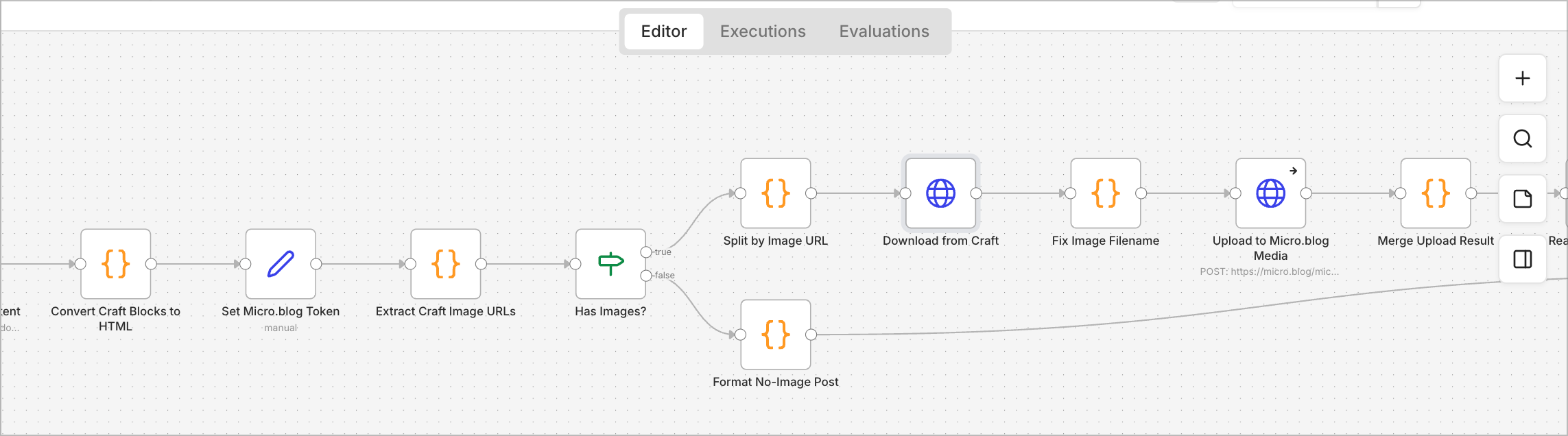
The workflow is triggered when you request to publish a Craft document to Micro.blog. Here's what happens behind the scenes:

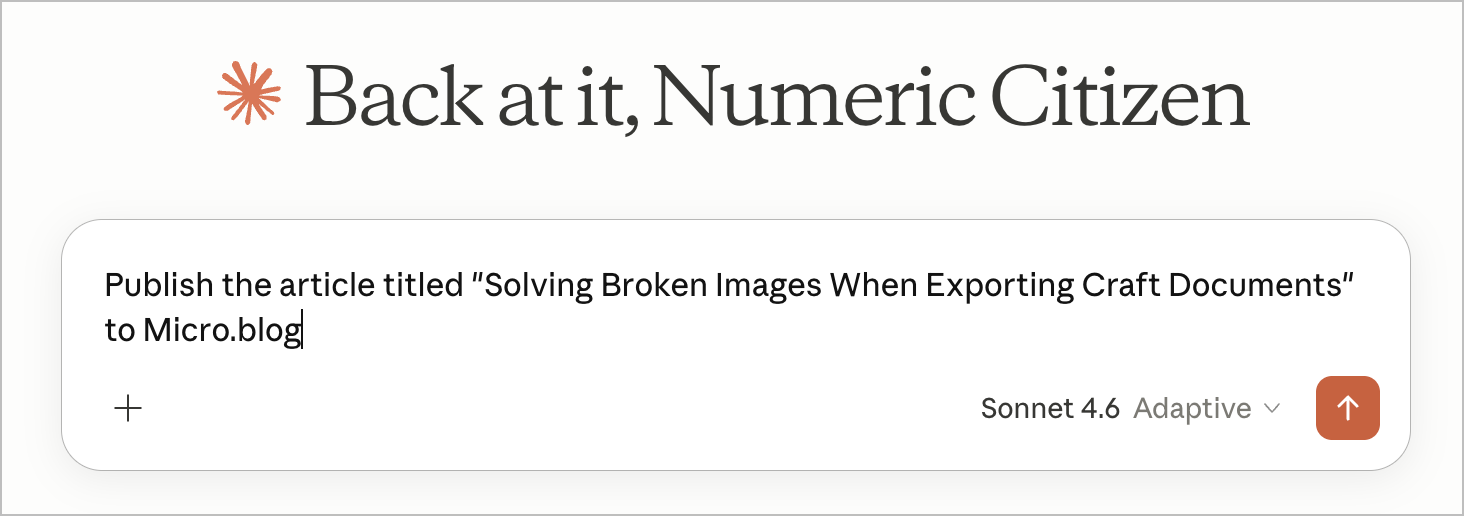
  1. A request is send in Claude with the article title to publish
  2. The n8n automation searches my Craft space and uses a scoring algorithm to find the exact document (preventing false matches from body text mentions)
  3. The document's content is converted from Craft's block format into clean HTML, preserving headings, lists, formatting, quotes, code blocks, and more
  4. The workflow scans for all image URLs pointing to Craft's backend hosting
  5. Each image is downloaded from Craft and immediately re-uploaded to Micro.blog's permanent media storage
  6. All image references in the post are updated to point to the new, stable Micro.blog URLs
  7. The article is published as a draft to Micro.blog for review before going live, which is a manual process

Key Technical Features

Smart Document Matching

The search algorithm scores results by how closely the document title matches the request. Exact matches score 100, partial matches score lower, and body-text mentions are heavily penalized. This ensures I get the right document even if multiple articles discuss similar topics. The search is done via Craft API endpoint.

Rich Content Support

The conversion preserves all the formatting: paragraph styles, heading levels (h1–h4), bullet and numbered lists, blockquotes, task checkboxes, strikethrough text, code blocks, horizontal rules, and rich link bookmarks. Consecutive list items are automatically grouped into single lists.

Graceful Image Handling

If an image fails to upload (for example, unsupported formats like AVIF), the system keeps the original Craft URL in your post rather than failing entirely. This ensures the article publishes even if one image has issues.

Manual Review

All posts are created as drafts in Micro.blog. I can review the final result, check that images loaded correctly, and make edits before publishing it live.

Workflow Specifications

  • Trigger: Webhook at craft-to-microblog (available in my n8n instance wirh MCP endpoint enabled)
  • Input: Simple JSON with the article title to publish
  • APIs used: Craft's document search and block retrieval, Micro.blog's Micropub standard API
  • Typical execution: 4–6 seconds (image uploads add ~1.5 seconds)
  • Output: Draft post URL, preview link, and edit URL from Micro.blog

Why This Matters

This automation fills a gap in the content publishing process. I can craft and organize my articles in Craft, a versatile and attractive writing environment, and then publish them to Micro.blog without losing images or manually fixing broken links. I use a similar method to publish new editions of the Ephemeral Scrapbook newsletter, which relies on a separate n8n workflow to handle Ghost CMS-specific requirements.

Building an Automated Publishing Pipeline: From Craft to Ghost

For months, I’ve been publishing my weekly newsletter, The Ephemeral Scrapbook, using a manual process: write in Craft, export to Ulysses, copy to Ghost, reformat everything, add images, fix formatting issues, and finally publish. It worked, but it was tedious and time-consuming.

Today, that process is fully automated. Here’s how Claude and I built it together.

The Challenge

My workflow had become a bottleneck:

  • Writing newsletters in Craft Docs (my preferred writing environment)
  • Exporting to Ulysses as an intermediary step
  • Manual copy/paste to Ghost (my publishing platform)
  • Reformatting all the markdown and HTML
  • Dealing with Craft-specific formatting that Ghost didn’t understand
  • Adding metadata like excerpts and tags manually

I wanted automation, but I also wanted to understand the infrastructure I was building. That’s where working with Claude became invaluable—not just executing commands, but learning and iterating together.

The Solution: n8n Workflow Automation

We decided to build an n8n workflow that would:

  1. Search for a document in Craft by title
  2. Fetch all the content blocks
  3. Transform Craft’s markdown/blocks into clean HTML
  4. Publish to Ghost as a draft
  5. Return confirmation with the post URL

Simple in concept, complex in execution.

The Journey: Key Milestones

Milestone 1: Understanding the Architecture

Challenge: Should we use multiple workflows or one unified workflow?

Decision: One end-to-end workflow that handles everything from search to publish.

Learning: Simplicity wins. Rather than orchestrating multiple workflows, we built one cohesive pipeline that’s easier to debug and maintain.

Workflow nodes:

  • Webhook (trigger)
  • HTTP Request (search Craft)
  • HTTP Request (fetch document)
  • Code (transform to HTML)
  • HTTP Request (publish to Ghost)
  • Respond to Webhook

The Iterative Building Process

One of the most important decisions we made was to build and test incrementally. Rather than assembling the entire workflow at once and hoping it would work, we added one node at a time, testing after each addition.

The Testing Cadence:

  1. Add Webhook → Test: Confirmed the webhook received the query parameter correctly
  2. Add Search Node → Test: Verified we could find the document and get the correct document ID
  3. Add Fetch Node → Test: Checked that we retrieved all 54 blocks of content with the proper nested structure
  4. Add Code Node → Test: Validated the HTML transformation, checking for clean output without Craft tags
  5. Add Ghost Publish Node → Test: Ensured the post was created as a draft with all content intact
  6. Add Response Node → Test: Confirmed the workflow returned post details back to Claude

Why This Mattered:

Each test revealed issues that would have been much harder to debug in a complete workflow:

  • The search node helped us understand Craft returns multiple matches (we needed the first result)
  • The fetch node showed us the nested structure (parent document → edition page → content blocks)
  • The code node iterations caught formatting issues (<callout> tags, ## symbols, <highlight> tags)
  • The Ghost publish node revealed we needed the ?source=html query parameter

By testing at each step, we could pinpoint exactly where problems occurred. When something didn’t work, we knew it was the node we just added, not some mysterious interaction between distant parts of the workflow.

This incremental approach turned what could have been hours of debugging into a smooth building process. Each successful test gave us confidence to move forward, and each failure was easy to isolate and fix.

Milestone 2: Building the HTML Transformer

Challenge: Craft uses its own markdown dialect with special tags like <callout>, <highlight color="blue">, and markdown headers in text blocks.

What we built: A comprehensive JavaScript transformation engine that:

  • Removes Craft-specific tags (<callout>, <highlight>)
  • Converts markdown formatting (bold, italic, links, code)
  • Processes different block types (text, headers, quotes, code, images, videos)
  • Handles rich URL blocks (YouTube embeds)
  • Preserves anchor links for internal navigation
  • Generates proper HTML for Ghost’s Lexical editor

Key functions:

  • markdownToHtml() - Converts inline markdown to HTML
  • processBlock() - Handles each block type (text, image, richUrl, code, line, etc.)

Milestone 3: Testing and Validation

The Process:

  • Test with real content (Edition 2025-52 with 54 blocks)
  • Verify HTML output in Ghost’s editor
  • Check for Craft formatting artifacts
  • Confirm all sections, videos, quotes, and images are preserved

Quality Checks:

  • ✅ No <callout> tags
  • ✅ No <highlight> tags
  • ✅ No ## symbols in headers
  • ✅ All YouTube videos embedded correctly
  • ✅ Blockquotes formatted properly
  • ✅ Images included
  • ✅ 9-minute reading time (17,000+ characters)

The Final Workflow

Input: {"query": "The Ephemeral Scrapbook — Edition 2025-52"}

Output: Draft post in Ghost with:

  • Complete HTML content
  • All formatting preserved
  • Clean structure
  • Ready for manual review (add images, tags, excerpt)

Execution time: ~3-4 seconds total

  • Search: 1-2 seconds
  • Fetch: 1-2 seconds
  • Transform: 36-84ms
  • Publish: 600-900ms

The Tools

  • Craft: My writing environment with a powerful API
  • Ghost: My publishing platform with a robust Admin API
  • n8n: Workflow automation platform (self-hosted on DigitalOcean)
  • Claude AI: My pair-programming partner via MCP (Model Context Protocol)

The Result

The workflow is production-ready. My publishing workflow went from 20+ minutes of manual work through Craft, Ulysses, and Ghost to a single command:

“Claude, publish Edition 2026-01 to Ghost”

And it just works. 🎉

Why I Built a Micro.blog Front End?

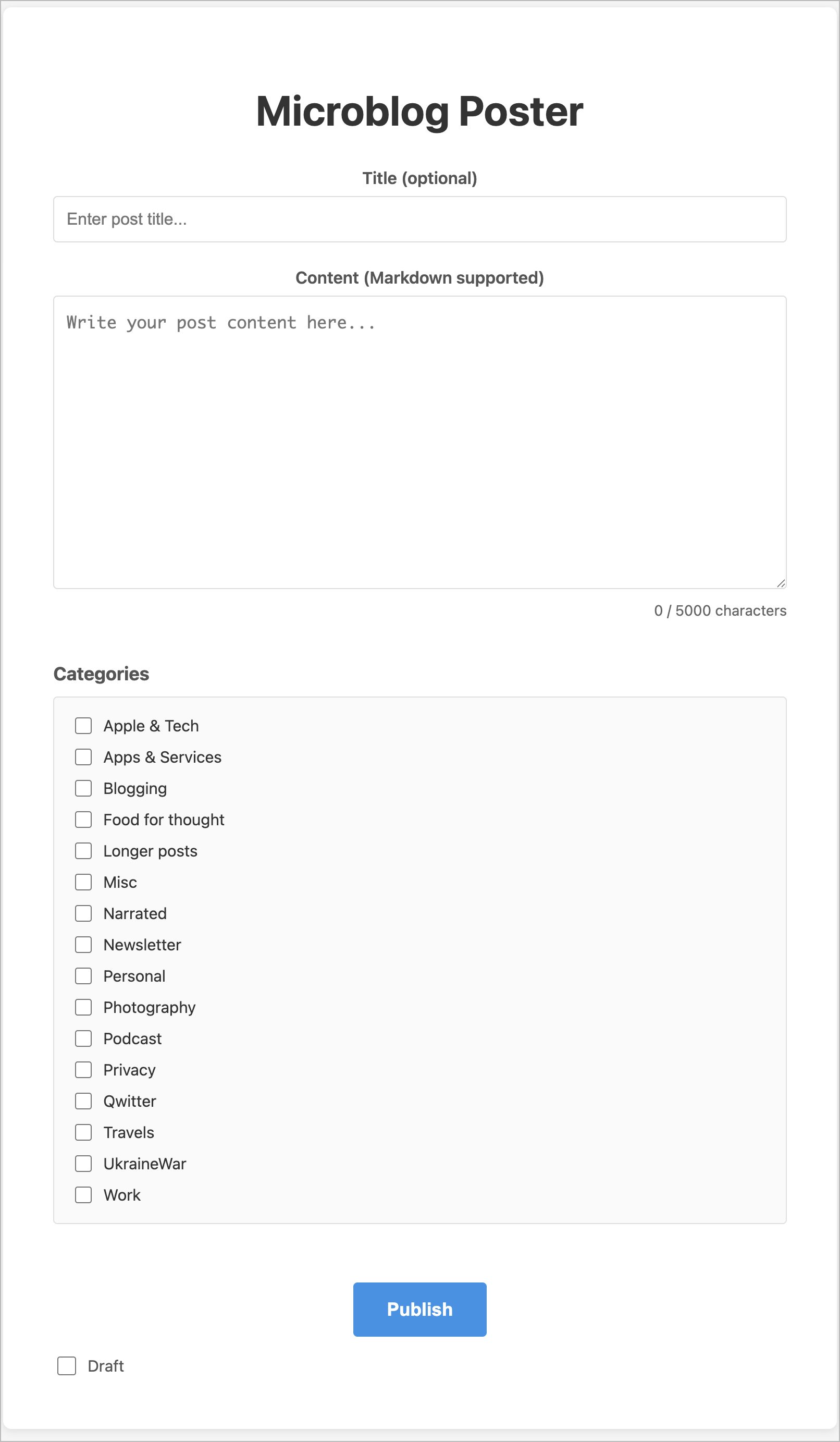
As recently shared on my blog, I have finished (or mostly finished1) building a simple front end for Micro.blog. This front end, as depicted in the following screenshot, presents the user with a straightforward UI: a title field, a body field, blog post categories, and a Publish button—very focused, with no distractions. It works on desktops and mobile devices. I even added PWA support. But why did I build this?

First, I wanted to dip my toes into Vercel. I’ve recently stumbled upon many posts about web apps built and deployed on Vercel by people claiming no programming experience. Most people were using Claude AI or Claude Code to describe their app and deploy it to Vercel. Some apps were impressively designed and functional. Yet, I thought it wasn’t that easy and required a lot of technical knowledge. I was intrigued. I was “mostly” wrong.

I’ve been using Claude AI since mid-December, in conversational mode, for different tasks, including getting explanations on building apps on Vercel and other platforms. I’ve been looking for small project ideas since then. Building a simple front-end to Micro.blog quickly became the perfect test. Micro.blog offers a simple API for many things. Using Claude and the API documentation, I asked Claude AI whether it was possible to build a simple UI for posting on Micro.blog. Sure enough, it was. My initial prompt describing the envisioned app follows:

Let’s build a web app hosted on Vercel that lets me to write blog posts for Micro.blog. The form will include only two text fields: a blog post title and the blog post text itself. Include a character count that will update as I type. Maximum of 5000 characters. The web page should include a title “Microblog Poster", centered.

Micro.blog supports Markdown, so the blog post text field should support it too.

The authorization token should be stored in an environment variable named “microblog_token” which I will provide once the project is created on Vercel.

I will use a GitHub repo, which should be named after the application name: “(redacted)” where the app will use the full URL: https://(redacted)

Provided that Micro.blog supports draft posts as exposed in the Micro.blog APIs, a toggle named “Draft” should be on the web form and be off by default. When enabled, this means I can send the blog post to Micro.blog but with a draft status. Otherwise, the blog post is published.

The initial state of the web app is to list all available blog post categories as a series of checkboxes, all off by default. You will need to retrieve possible blog post categories during the initialization phase. A blog post can have more than one category selected or none. This list of checkboxes should be left-aligned. The category list should be saved in the browser’s local storage and initialized on the first invocation of the web app.

The form will contain a button “Publish” centered horizontally (like all the other UI elements, except the toggle underneath the Publish button which should be left aligned. Once clicked, if the post operation is successful, add a small banner (centered) telling me the operation was successful with an appropriate message.

For a non-draft post, after hitting Publish, the form should display a clickable link to the blog post’s final URL. For the draft post, you should display the clickable link to the draft post instead.

Images or any other attachments are not needed.

You can look at micro.blog API documentation in the following URLs:

For reading data from Micro.blog service: https://help.micro.blog/t/json-api/97

For posting to Micro.blog service: https://help.micro.blog/2017/api-posting/

After a few hiccups and errors, it eventually worked. I had to install GitHub Desktop on My Mac as well as Visual Source Code, but I eventually realized Claude AI wasn’t optimal. I ultimately switched to Claude Code to iterate on the initial release. My experience was so much smoother. I do experience so weird issues with GitHub, but it seems without impacts on the deployment.

So, building the app requires a GitHub repository for holding the source code. Vercel connects to my GitHub repo, and as soon as a new commit is made, a new app deployment happens; It’s all automatic. One important thing to know: a project environment variable2 to hold the Micro.blog app token is needed before trying the app for the first time.

My first try mainly worked as expected. I made sure to have a draft mode available in the UI so that I don’t mess up my timeline with test posts. Once the app is deployed and available for use, any modifications are made through prompting Claude Code on my local machine. Code changes are pushed to GitHub on demand. It takes a few minutes for a new iteration to be available for testing.

If you have any questions or comments, feel free to post them, and I’ll do my best to answer them to the best of my knowledge.

One more thing: Vercel is free to use in my case because my app is relatively lightweight. Lastly, one benefit of building my app is that it will circumvent a design issue with Micro.blog’s post editor on the web: the title field and categories aren’t listed by default. I find this to be annoying. My app shows them. I’m happy with that.


  1. Software is never finished! ↩︎

  2. It’s the most secure way to keep that token away from unauthorized eyes. ↩︎

Screenflow + Screen Studio

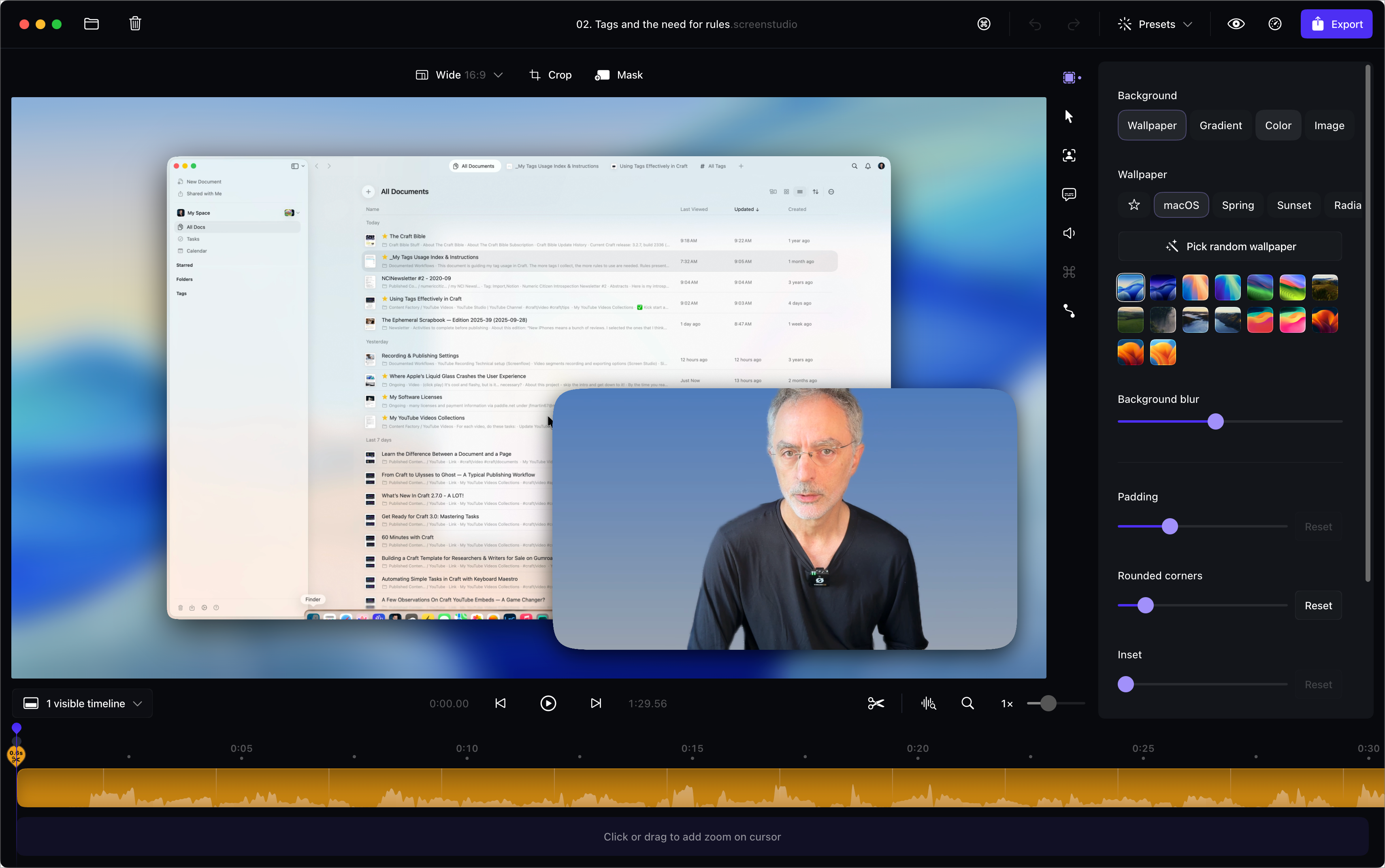
This week, I decided to add Screen Studio to my YouTube recording workflow. Screen Studio brings simplicity for recording more dynamic screen sequences. Everything Screen Studio does can be done in ScreenFlow, but it requires significantly more manual work. But Screen Studio has a severe limitation: we cannot merge recorded sequences. That’s why I’m keeping ScreenFlow.

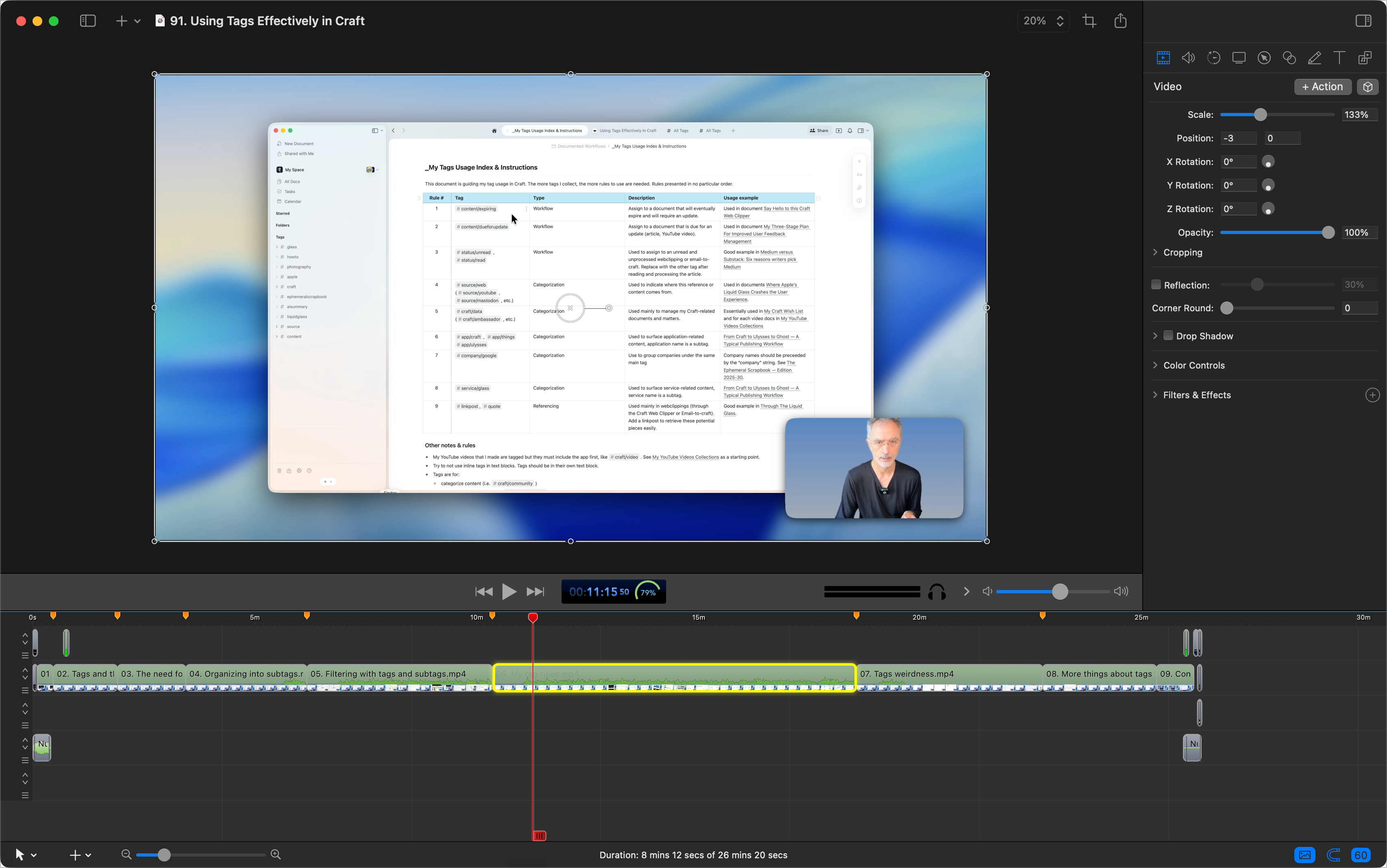
In summary, my workflow proceeds as follows: individual sequences are recorded in Screen Studio, exported as .mp4 files, and then imported into ScreenFlow to be assembled into a complete video sequence, which includes the intro and outro sequences with background music. Chapter markers are also added in ScreenFlow before final export. Finally, video subtitles are created using Whisper Transcription and exported as an .srt file, which is compatible with YouTube Studio.

Overall, I do spend more time on video rendering, but I think it’s worth it. Lastly, disk space consumption is way higher than before, with 2x-3x more space consumed than with ScreenFlow alone. Ouch.

One more thing: Screen Studio is the only app that makes the M4 Mac mini fan run at full speed. I wonder if Screen Studio uses Apple Metal technology?

Behind the Scenes of the “On Apple Failures" Writing Project

I’ve long wanted to write an article like this one. However, as Apple continued to add to its list of failures, poor Apple, I kept pushing back the deadline. This summer, however, the timing was right. Here’s what I did differently this time.

A few months ago, I started gathering a list of Apple’s failures in a Craft document. I wanted to cover the period from when Tim Cook took over as Apple’s leader, following Steve Jobs’ passing, up until now. For each failure, I wrote a summary that included a description, some context, and a list of potential collateral damage to Apple’s reputation and brand. Then, I turned to ChatGPT for help.

I set up a space to upload files, one for each failure, and began a separate “conversation” to explore areas I hadn’t already covered. This process took a few weeks. I’d revisit one of the failures every other day and continue the conversation until I was satisfied.

Next, I started creating a first draft based on all the conversations in this ChatGPT writing project. It took many prompts to refine the base content before exporting it as a Markdown file. Then, I set up a new conversation, uploaded the file, and asked ChatGPT to continue working on the article, this time in canvas mode. It took many more iterations and manual edits to finish around 85% of the writing process.

After that, I imported the text back into Craft and kept adding relevant facts and comments. As I went along, I started searching for photos that could illustrate each section. I used Kagi Search for all my image searches. For each photo, I wrote a brief caption that gave a unique perspective on the failure it was highlighting.

It’s also worth noting the role of Grammarly. As I finished writing in Craft, I used Grammarly to rephrase parts I didn’t quite like. I ended up keeping around half of Grammarly’s suggested rephrases.

In summary, generative AI was a significant contributor to my writing, either through the use of ChatGPT or with Grammarly’s constant supervision. I’m not sure how I should feel about this, nor how you should think about it, now that you know. Make no mistake, the original writing project idea is mine. The selection of Apple’s failures is mine. The starting point of research is mine. The selection of images is mine. Supervision of ChatGPT’s contribution is mine. But is the final product mine? Anyway, complete transparency, now you know.

The Future of Writing? Testing ChatGPT Canvas for a Specific Use Case

In October 2024, OpenAI launched ChatGPT Canvas, designed to enhance the writing experience. Before ChatGPT Canvas, one writing approach using ChatGPT involved compiling these references into a ChatGPT project, then starting the writing process by using a first prompt, followed by another, and so forth. With ChatGPT Canvas, the approach promised to be more user-friendly, more interactive, more natural.

I wondered which writing project I could use to test this new conversational experience. For a long time, I’ve wanted to write about the data protection and privacy features offered by Apple’s ecosystem for iPhone and Mac users. I had already started gathering references from Apple’s support website and elsewhere on the internet. It was the perfect use case for this experiment.

ChatGPT Canvas starts off with a prompt, as usual, but now you include the term “canvas” in the request. The rest of the experience unfolds in an interface split into two sections: on the left side is the writing conversation, and on the right is the evolving draft. ChatGPT Canvas lets you interactively edit sections of text by selecting them first before requesting modifications. It’s highly interactive; somewhat like working with an editor in real-time. It’s very stimulating.

With “Protecting Your Digital Life: Privacy and Security Measures for Apple Users”, I had the opportunity to fully test this experience with my previously mentioned article project. ChatGPT was central to this writing project, but I also revised certain parts by removing or adding some content and by adding details that ChatGPT didn’t consider important enough to include. The result isn’t perfect, but it’s definitely better than what I would have written from scratch. I hope you enjoy reading it, and that you find the article informative. PS, the diagram is mine, not ChatGPT’s.

Combining Craft And Things 3 For My Writing Projects

This article is about how I’m using Craft and Things 3, which is behind any short or long article I share online. Here is what happens when I get a new post idea.

  1. In Things 3, Create an entry and set priority and desired or expected date of publication if known.
  2. In Craft, I create a new document, set the title and then copy the document’s deeplink to the clipboard.
  3. Still within Craft, I move the newly created document in the appropriate folder.
  4. Still within Craft, I optionally update my private creator dashboard document.
  5. Back to Things 3 and I paste the deeplink in the note field. It’s handy to jump from Things 3 to Craft with a single tap.

At this point, I can start my research, writing and editing of my article or blog post in Craft. Now, here is what happens after publishing my article:

  1. Mark the to-do item as done in Things 3.
  2. I update my private creator dashboard document by converting my deeplink to a new a permalink that I put in the Recently Published section.
  3. I monitor the appropriate RSS feed for quality control. See this article about subscribing to my own RSS feeds.

There you have it. Craft plays a central role in My Blogger Workflow. This blog post exposes what happens at the beginning and at the end of a new post idea. I hope you enjoyed it and maybe learned something.

Browsing Past Published Articles on Ghost

Circumventing Ghost’s limited posts management capabilities.

List of publications in Ghost admin panel.

I recently decided to spend some time editing past articles published on my Numeric Citizen Space website. I first thought that by going to my Ghost admin page, I could quickly browse past published articles by month. I couldn’t be more wrong. In fact, Ghost offers limited post management capabilities, thanks to its limited content browsing capabilities. I cannot go back, say, list articles published early in 2023. I can sort by ascending or descending order, but from there, I have to scroll through a long, dynamically created list of posts. It’s not very effective for a website with 600-plus posts. I had to find a different option to locate a post for an update. This is where Ghost’s content APIs come into play.

The following API request doesn’t do the job (API key voluntarily removed!):

curl -H "Accept-Version: v5.0" "https://numeric-citizen-introspection.ghost.io/ghost/api/content/posts/?key={APIkeygoeshere}&fields=title,url,published_at,updated_at&filter=published_at:>2024-01-01%2Bpublished_at:<2024-02-01" | json_pp

Let me explain what is this API request.

First, I’m going to the request using the macOS command line, hence the curl command. Next, the whole query follows in quotes. I query the content/posts API endpoint. Next, I pass my API key, followed by a field selection (&fields), and next with the filter using the published date between two dates. Finally, I pipe the results in the pretty JSON print macro (is this a macro?) so the output looks like this:

jfm@CraftingMAChine ~ % curl -H "Accept-Version: v5.0" "https://numeric-citizen-introspection.ghost.io/ghost/api/content/posts/?key={API-key-goes-here}&fields=title,id,url,published_at,updated_at&filter=published_at:>2024-01-01%2Bpublished_at:<2024-02-01" | json_pp
	{
	   "meta" : {
	      "pagination" : {
	         "limit" : 15,
	         "next" : null,
	         "page" : 1,
	         "pages" : 1,
	         "prev" : null,
	         "total" : 9
	      }
	   },
	   "posts" : [
	      {
	         "id" : "65b6a09840566000015b0d37",
	         "published_at" : "2024-01-28T13:50:19.000-05:00",
	         "title" : "My Weekly Creative Summary for the Week of 2024/03",
	         "updated_at" : "2024-01-28T13:50:19.000-05:00",
	         "url" : "https://numericcitizen.me/my-weekly-creative-summary-for-the-week-of-2024-03/"
	      },
	      {
	         "id" : "65b6540640566000015b0cf7",
	         "published_at" : "2024-01-28T08:23:26.000-05:00",
	         "title" : "Special Message to Paying Subscribers",
	         "updated_at" : "2024-01-28T08:23:26.000-05:00",
	         "url" : "https://numericcitizen.me/special-message-to-paying-subscribers/"
	      },
	      {
	         "id" : "65b16e25bc7fde0001314ccb",
	         "published_at" : "2024-01-24T15:09:24.000-05:00",
	         "title" : "The Mac Turns 40",
	         "updated_at" : "2024-01-24T15:09:24.000-05:00",
	         "url" : "https://numericcitizen.me/the-mac-turns-40/"
	      },
	      {
	         "id" : "65ad35418532ae000169ddd2",
	         "published_at" : "2024-01-21T10:22:33.000-05:00",
	         "title" : "My Weekly Creative Summary for the Week 2024/02",
	         "updated_at" : "2024-01-21T10:22:33.000-05:00",
	         "url" : "https://numericcitizen.me/my-weekly-creative-summary-for-the-week-2024-02/"
	      },
	   ]
	}

Next, I copy the post ID of one article and paste it my browser for edition using this special URL:

https://numeric-citizen-introspection.ghost.io/ghost/#/editor/post/652e6eedb8a2650001ad9c5b

This URL brings me directly into the Ghost editor, provided that i was already authenticated with my account. That’s pretty much it. It could be much simpler. For this, I miss WordPress.

You can find the Ghost API document right here.