Using the iPad for Editing Blot Posts With a Git Client

Editing new content from the iPad for this blog poses some challenges.

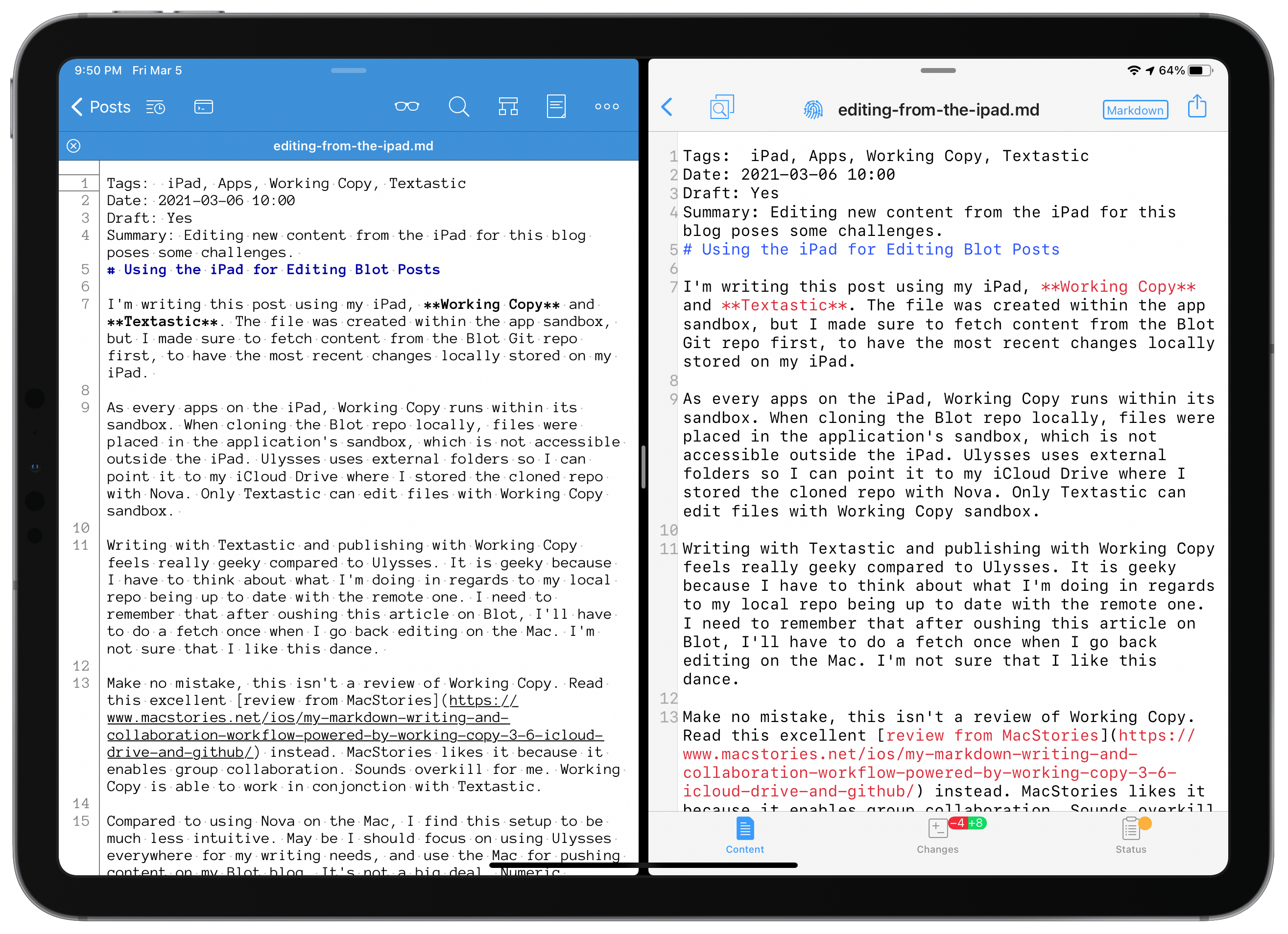
I started writing this post using my iPad, Working Copy and Textastic1. The file was initially created within Working Copy’s sandbox, but I fetched content from the Blot Git repo to store the most recent changes locally on my iPad.

As with every app on the iPad, Working Copy runs within its sandbox. When cloning the Blot repo locally, files were placed in the application’s sandbox, which is inaccessible outside the iPad2. Ulysses uses external folders, so I can point it to my iCloud Drive, where I stored the cloned repo with Nova. Only Textastic can edit files with Working Copy’s sandbox.

Writing with Textastic and publishing with Working Copy feels geeky compared to a workflow based solely on Ulysses. It is geeky because I have to think about what I’m doing in regard to my local repo being up to date with the remote one. I must remember that after pushing this article on Blot, I’ll have to do a fetch when I go back to editing on the Mac. I’m not certain that I like this dance. Textastic is good, but not as a writing application like Ulysses. The former is more directed to developers, while the latter is for writers.

Textastic on the left, Working Copy on the right.

Make no mistake, this isn’t a review of Working Copy. Read this excellent review from MacStories instead. MacStories likes it because it enables better group collaboration. It sounds overkill for me since I’m alone editing my website. Working Copy can work in conjunction with Textastic. After re-reading their review of Working Copy3, I found out that, in fact, I could have replicated a similar setup to the one on my Mac: using Working Copy to edit the local repo of this blog sitting on iCloud Drive (instead of Working Copy’s sandbox)4. In that case, I would use Ulysses to edit files as usual, and Working Copy, you see them as uncommitted changes.

If I don’t redo my setup on the iPad5, compared to using Nova on the Mac, I find this to be much less intuitive. Maybe I should focus on using Ulysses everywhere for my writing needs and use the Mac to push content on my Blot blog. It’s not a big deal, and Numeric Citizen I/O is not a place where I’ll publish as often as on, say, Micro.blog. Having to sit in front of the Mac for the final posting isn’t a big deal.

One last thing: Working Copy wouldn’t be needed if my Git usage was limited to GitHub. Blot, on which Numeric Citizen I/O is hosted, uses its Git server, which requires me to use a Git client capable of connecting to it. I didn’t find a way to do this with the official GitHub client.

I’m still undecided about what to do to enable my iPad to edit this blog. My mobile needs are quite low as the pandemic continues, limiting our travel possibilities.


  1. This post wasn’t published from the iPad, after all. When I was ready to publish, I found out that the git push feature of Working Copy was only available to paying users. I chose to copy & paste content from Textastic to Ulysses and publish, as usual, using Nova on the Mac. ↩︎

  2. They are made available to other apps on the iPad, though. Files.app get’s a storage provider when Working Copy is installed. That’s how Textastic can edit Working Copy files. ↩︎

  3. Version 3.6 at the time. The current release is 4.5.9. ↩︎

  4. I tried using the “Setup synced directory” feature by pointing the Git-managed directory sitting on my iCloud Drive. Working Copy gave me a big warning of an unsupported configuration. I’m not sure what to think of this. There is the “Add folder” option, but it is only available to pro users. ↩︎

  5. I need the pro version to do this. ↩︎

Documenting Blog Changes

Using Git instead of Dropbox for Blot content syncing provides an unexpected benefit.

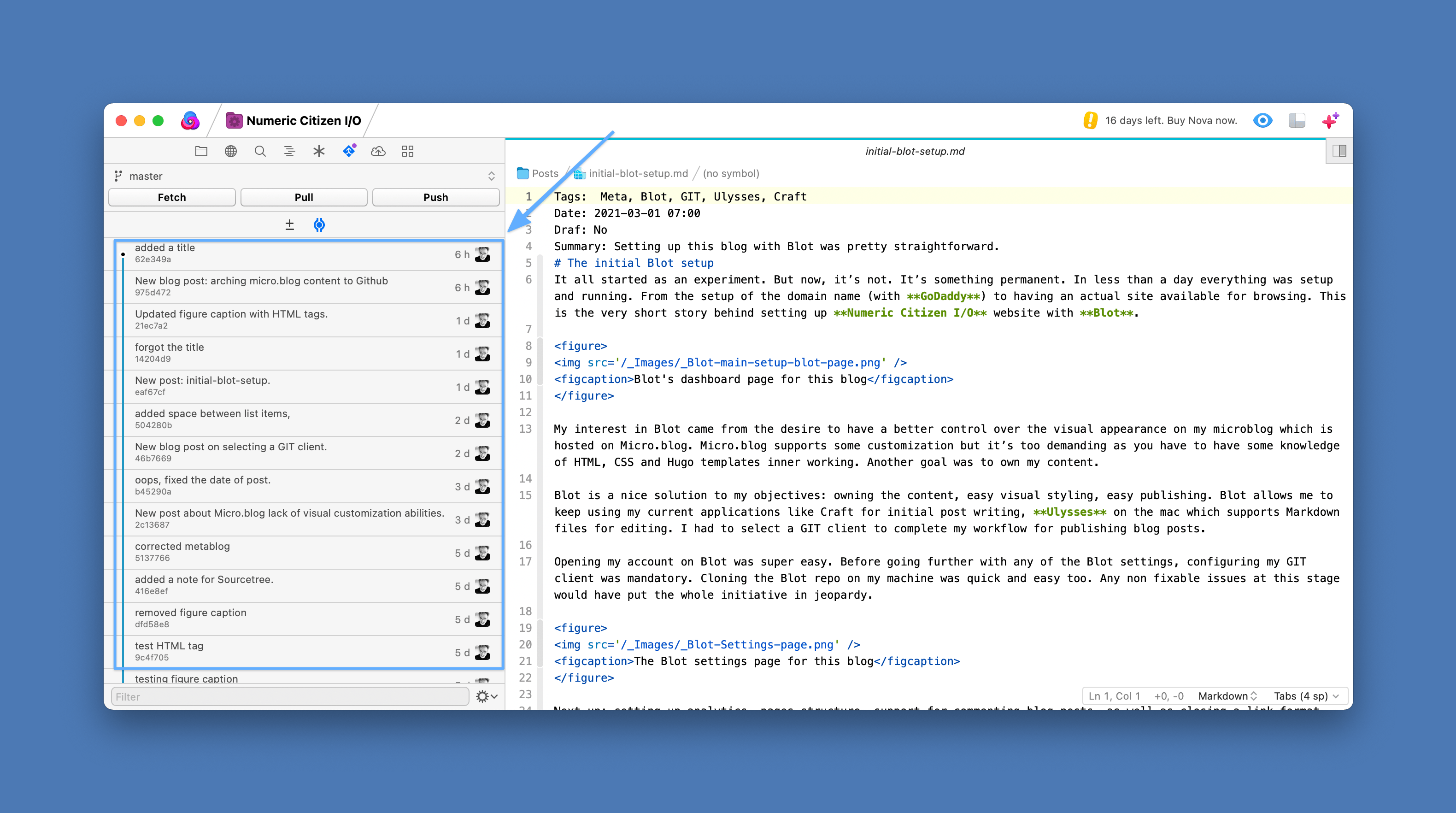
As I recently wrote, Blot supports two mechanisms for synchronizing content from my Mac to the web: Dropbox or Git. I chose Git. As I write this, I’m still testing Nova as the Git front-end (I’m a GUI type of guy). One of the great benefits of using Git is the built-in history of commits that is at the core of any Git repo. As shown below, as I push updates to my Blot-based website, I make sure to write a short comment in the commit action to document the commit action. I think this is an important asset in managing a blog and owning its content.

Commit history to the blog report using Nova

A better view at the GIT panel in Nova:

Nova GIT panel with commit message area

Archiving my Content from Micro.blog to GitHub

Micro.blog allows for archiving all content to GitHub. Here is why I did it.

This blog post is about explaining a Micro.blog allowing me to archive all my blog posts, including images and why I do it.

First, you must know that Micro.blog already provides an archiving feature of all blog posts to the Internet web archive. You can find mine here. I think it is important because in our society, the durability of the numerical artifacts we create is far from guaranteed. Saving my blog posts outside of Micro.blog is one way to prevent my content from vanishing if something really bad happens to Micro.blog.

Micro.blog feature to archive my blog posts to a GitHub repo

I wanted to go further, though. This is where Github comes in. First, I needed to create a new repo: numericcitizien-archives. Next, by using the built-in feature of Micro.blog to archive blog posts to the newly created GitHub repo. Enabling it is super simple from the design page settings. Once done and after waiting for about a week, I could see my content from my GitHub account. You can find it here: https://github.com/jfmartin67/numericcitizen-archives.

Now that my Github repo has a copy of my blog content hosted on Micro.blog, I can use a Git client like Nova on the Mac to clone this repo to my local machine. The archive feature of Micro.blog creates a big index file in HTML format that I can then open in Safari. It’s really nice.